Adding a website
Step 1 — Enter the address
In Site Assistant → Embed Script, section 1. Add a website, type the address of the site that will show the chat, then press Add website.
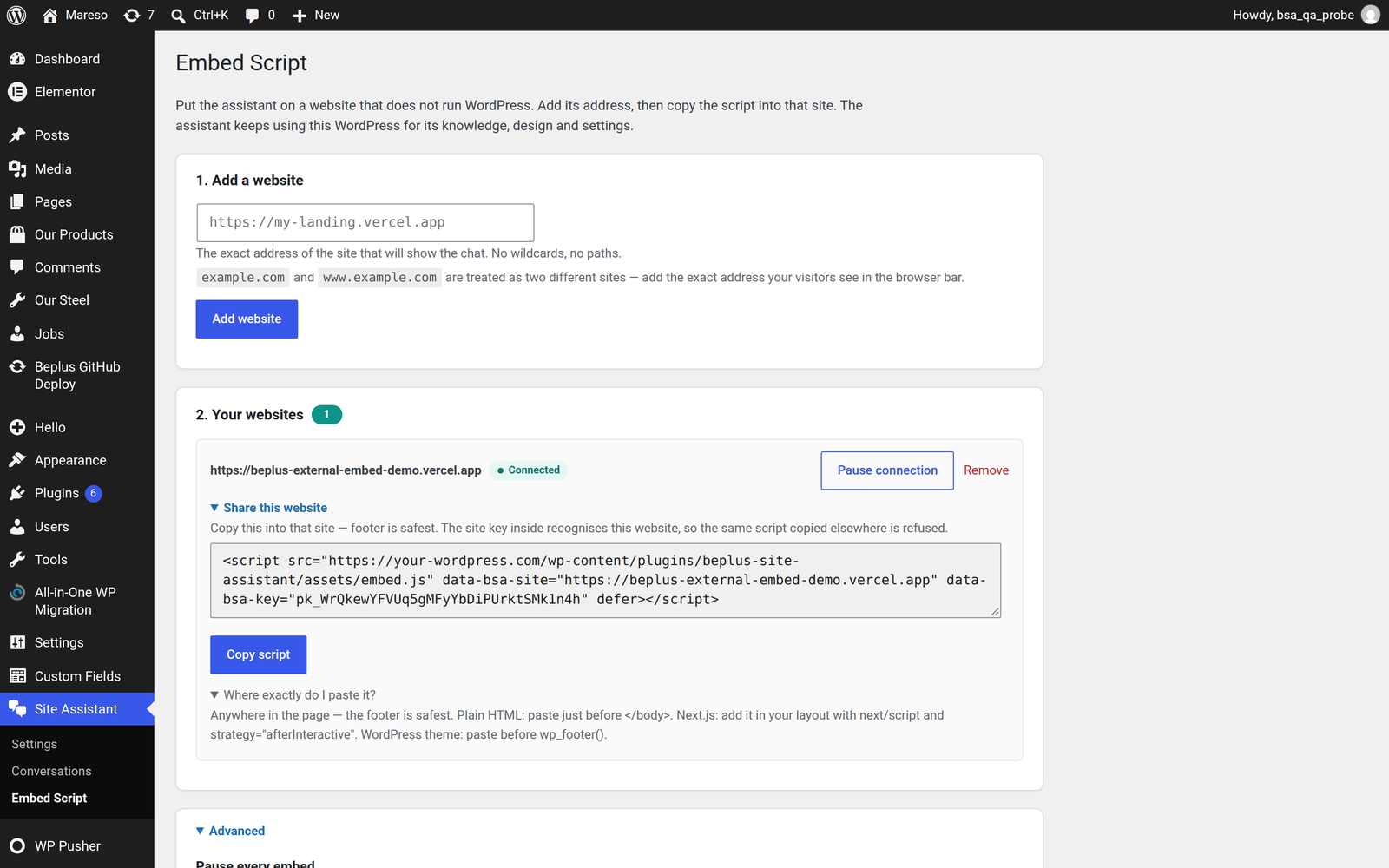
Type the address as your visitors see it in the browser bar. That is the whole rule, and it is stricter than it sounds:
| ✅ Use this | ❌ Not this | Why |
|---|---|---|
https://example.com | example.com/pricing | Paths are not part of a site's identity |
https://shop.example.com | *.example.com | Wildcards are not supported |
https://www.example.com | https://example.com | These are two different websites |
https://example.com | http://example.com | The scheme is part of the identity too |
You may paste a bare domain — example.com — and it will be understood as
https://example.com. Anything more complicated than that, paste in full.
⚠️ The
wwwtrap — this is the most common failure of all.example.comandwww.example.comare treated as two separate websites. If your visitors reach the site atwww., you must add thewww.version. Get this wrong and the chat simply never appears, with no error anywhere to point at. If you are unsure which form your site uses, open it in a browser and copy the address out of the address bar.
Press Add website. If the address cannot be understood, the screen says so and nothing is added.
Step 2 — Copy the script
The website now appears in section 2. Your websites, marked Connected, with its own ready-made script:
<script src="https://your-wordpress.com/wp-content/plugins/beplus-site-assistant/assets/embed.js"
        data-bsa-site="https://the-other-site.com"
        data-bsa-key="pk_xxxxxxxxxxxxxxxxxxxxxxxx"
        defer></script>
Press Copy to put it on your clipboard. Each website has its own script —
never reuse one site's script on another, because the key inside is bound to the
address shown in data-bsa-site.
Step 3 — Paste it into the other website
Paste the script into the footer of the other site, as late in the page as
possible — immediately before the closing </body> tag is ideal.
Where that is depends on how the site is built:
| The site is | Paste into |
|---|---|
| Plain HTML | Just before </body> in every page, or in a shared footer include |
| Next.js / React | A shared layout component, or next/script with strategy="afterInteractive" |
| Vercel / similar host | A site-wide footer or custom-code setting |
| Shopify / Squarespace / Webflow | The theme's footer code or custom-code box |
| WordPress, but a different install | The theme's footer.php, or a "insert headers and footers" plugin |
The defer attribute is already in the script. Leave it there — it lets the page
finish loading before the widget appears, so it never slows the site down.
Step 4 — Check it worked
Open the other website and look for the floating mascot in the bottom corner. It usually appears within a second of the page finishing loading.
Then check the connection from your side: ask the assistant a question through the other site, and refresh Conversations in WordPress. The conversation should appear there, with the other site's address in the Page column. That is the proof the two are actually talking to each other.
💡 Nothing appeared? Do not re-add the website or re-copy the script yet — that is almost never the problem. Go to When a site is refused and work down the table; the cause is there, with the fix.