Storage
Conversations are kept forever by default. This tab tells you what that is costing you in disk space, and gives you the one button that deletes things.
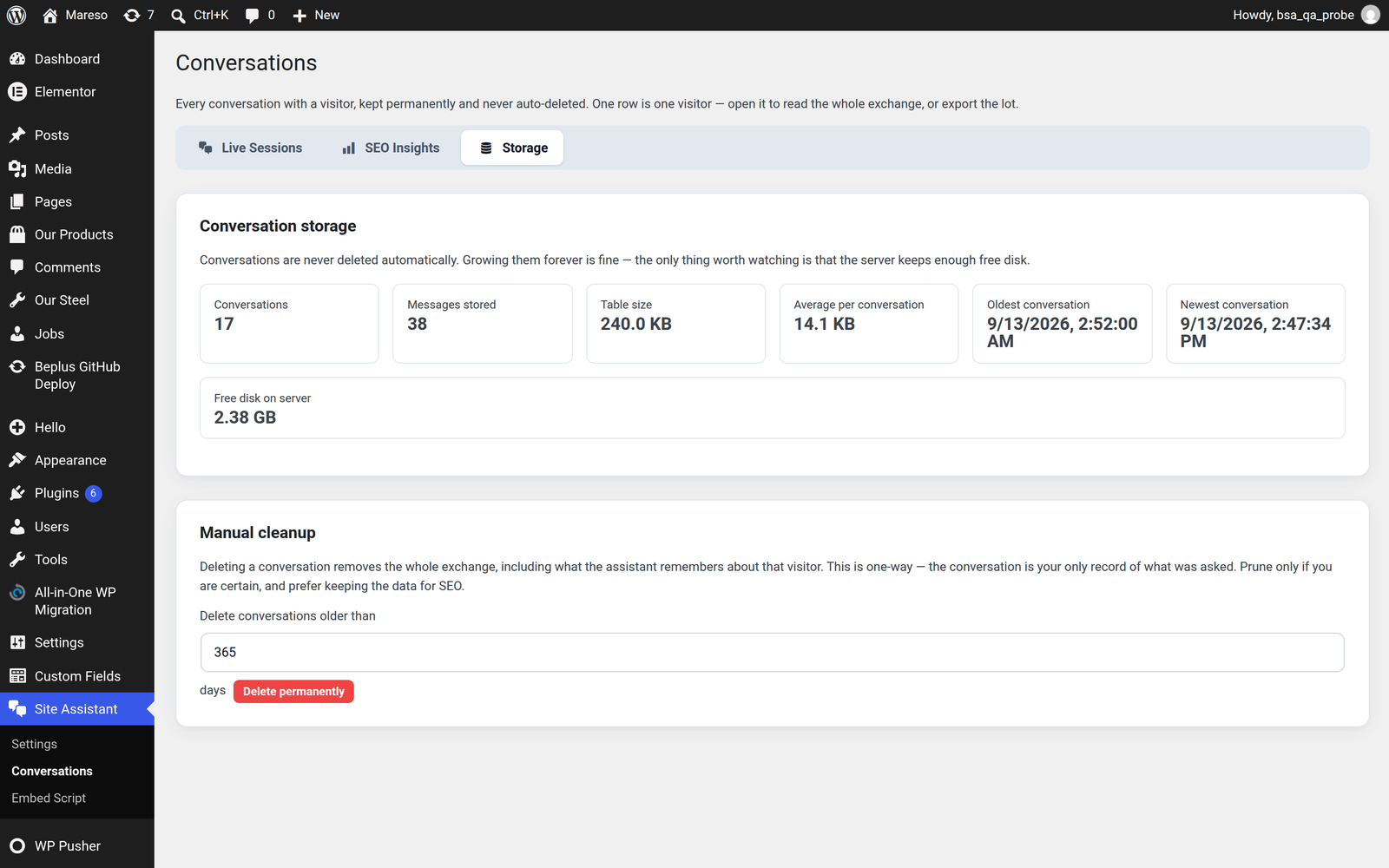
Why nothing is deleted automatically
Because the conversations are the valuable part. The SEO report, the gap analysis, the record of what your visitors asked — all of it comes from these records. A plugin that quietly deletes them after thirty days would be throwing away the most useful data on the site.
So the rule is simple: nothing is ever deleted unless you delete it.
How much space it takes
Conversations are text, and text is small. A conversation with a dozen exchanges is a few kilobytes — less than a single product photo.
For scale: hundreds of thousands of conversations would still be measured in hundreds of megabytes, not gigabytes. On any normal site this is not a figure worth worrying about.
The numbers on this tab are read live from the database, so they are the real figures rather than an estimate.
💡 What is actually worth watching is your server's free disk, not the size of this table. A chat log has never filled a disk; a forgotten backup has. The plugin shows the free space alongside its own size so the proportion is obvious.
Manual cleanup
The Delete conversations older than control removes everything before a date you choose.
This is the right tool when:
- You are running a campaign that is over, and the older conversations are noise
- You need to reclaim space on a very tight hosting plan
- You are handing the site to someone else and want a clean slate
⚠️ This is one-way, and it is not a backup. Deleting removes the whole exchange — including what the assistant remembered about those visitors. The conversation record is your only copy of what was said, so export first if there is any chance you will want the history. See Conversations for the Export button.
After a delete, the SEO report no longer counts those conversations. The topic tally itself is kept, so the analysis you already paid for is not thrown away — but the underlying conversations behind it are gone.
Exporting before you clean up
A sensible routine if you do want to trim:
- Export the whole range to CSV or JSONL — Conversations → Export
- Keep the file somewhere safe — a backup disk, cloud storage, wherever your other backups go
- Only then delete from this tab
The exported file is a complete record: one row per conversation, with the full transcript inside it, and it opens in any spreadsheet.
Related
- Want the conversations out as a file? → Conversations
- Want to know what they were asking? → SEO Insights
- Want to stop new conversations instead? → Pause the widget in AI & Model